Create posters and banners for school, events, announcements, websites, presentations, and simple promotions with our Poster and Banner Maker. Choose a size, add your text and images, customize the colors and fonts, preview your design, and download it when you are finished.
By Ashraf
Last reviewed: August 11, 2026
How this page was prepared: This guide focuses on practical poster and banner design basics, including readable text, clear visual order, sizing, spacing, image quality, and common design mistakes.
Create your poster or banner
Choose a size, add your message and images, customize the layout, then download your design as PNG.
How to Use the Poster and Banner Maker
Create your design in a few simple steps.
Choose Poster or Banner
Select the format that matches what you want to create.
A poster usually gives you more room for an event, school project, announcement, promotion, or printed design.
A banner is commonly wider and works well for shorter messages on websites, presentations, announcements, and promotional graphics.
Choose a Size
Pick one of the available sizes or enter a custom width and height.
The best dimensions depend on where the finished design will be used. A school poster may need a different layout from a website banner or presentation graphic.
Choosing the size first also helps prevent important text or images from being cropped later.
Add Your Content
Start with the information people should notice first.
A simple structure is:
Headline → Supporting details → Image → Call to action
For an event, the supporting details may include the date, time, location, registration information, or contact details.
Customize the Design
Adjust the background, text colors, fonts, alignment, images, and element positions until the information is easy to read.
Keep the most important message visually stronger than supporting details.
Preview and Download
Check the complete design before exporting it.
Look for:
- Spelling mistakes
- Missing dates or locations
- Cut-off text
- Hard-to-read colors
- Blurry images
- Poor alignment
- Elements too close to the edges
When everything looks right, use one of the download options available in the editor.
Poster Maker
A poster gives you enough space to combine a strong headline, an image, important details, and supporting information.
How to Make a Poster
Start by deciding what the poster needs to communicate.
If you are creating an event poster, make the event name the easiest thing to notice. Place the date, time, and location underneath it in smaller but readable text.
Add an image or graphic only when it supports the message.
A simple poster structure might be:
Event Name
Main Image
Date and Time
Location
Call to Action
The goal is to let someone understand the main message without reading every word.
What Should a Poster Include?
The content depends on the purpose of the poster.
An event poster may include:
- Event name
- Date
- Time
- Location
- Short description
- Registration details
- Contact information
- Call to action
A school project poster may instead use a title, section headings, images, charts, and short blocks of supporting information.
Poster Design Example
Suppose you are creating a poster for a school science fair.
SCIENCE FAIR 2026
Student Projects and Experiments
Friday, October 16
4:00 PM to 7:00 PM
School Gym
Free Admission
“SCIENCE FAIR 2026” should be the most prominent text.
The date, time, and location should be easy to find without competing with the main headline.
Banner Maker
A banner normally has less room than a poster, so the message should be shorter and more focused.
How to Make a Banner
Start with one main message.
Use a short headline followed by one supporting line, an image if needed, and a clear next step.
Avoid putting long paragraphs into a banner.
A simple structure is:
Headline
Short supporting message
Image
Call to action
What Should a Banner Include?
A promotional banner might contain:
WEEKEND SALE
Save 25% on Selected Items
Shop Now
The discount and main message should be easy to understand within a few seconds.
Website Banner Example
A website announcement could use:
NEW FALL CLASSES
Registration Opens August 20
View Schedule
The banner communicates what is happening and gives the visitor a clear next action.
Poster vs. Banner
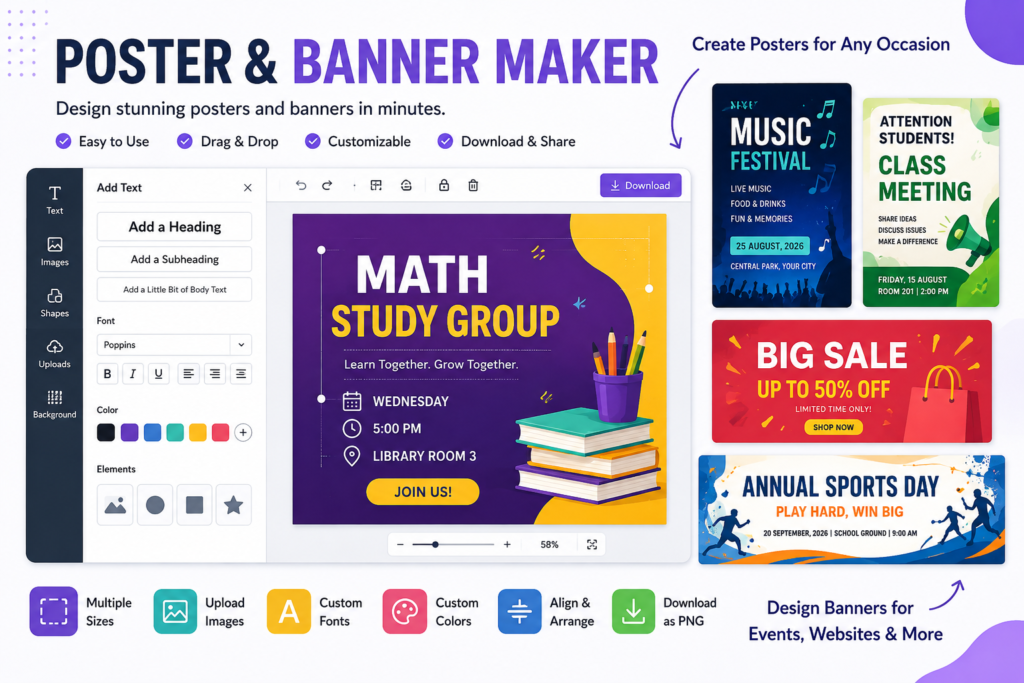
Posters and banners can contain similar information, but they usually use different layouts and amounts of text.
What Is the Difference Between a Poster and a Banner?
A poster usually provides more room for details and commonly uses a vertical layout.
A banner is generally wider and uses fewer words so the main message can be understood quickly.
Both formats can be used online or in print depending on their dimensions and purpose.
When Should You Use a Poster?
A poster can work well for:
- School projects
- Events
- Study groups
- Workshops
- Classroom displays
- Community announcements
- Promotions
- Club activities
Use a poster when the viewer needs more than one or two pieces of information.
When Should You Use a Banner?
A banner can work well for:
- Website announcements
- Presentation headers
- Promotions
- Event notices
- Social graphics
- Calls to action
- Schedule announcements
Use a banner when the main message needs to be understood quickly.
Poster and Banner Sizes
There is no single size that works for every poster or banner.
The right dimensions depend on where the finished design will appear.
Choosing a Poster Size
A portrait layout works well when you need vertical space for a headline, image, and several details.
A landscape layout can work better when the available display area is wider.
If the poster is for a school project, event, printer, or presentation, check whether there are specific size requirements before starting.
Choosing a Banner Size
Website banners, presentation banners, digital announcements, and promotional graphics may all require different dimensions.
Choose a preset that matches the intended use or enter your own width and height when exact dimensions are required.
Using a Custom Size
Custom dimensions are useful when a website, printer, presentation, or other platform gives you a specific width and height.
Set the canvas size before doing most of the design work so you do not have to reposition everything later.
Poster and Banner Templates
Templates provide a starting layout so you do not have to build every design from a blank canvas.
School Event Template
Use a large event name followed by the date, time, location, and short supporting information.
For example:
SCHOOL TALENT SHOW
Friday at 6:00 PM
Main Auditorium
Doors Open at 5:30 PM
Study Group Template
Make the subject or session name the main headline.
For example:
MATH STUDY GROUP
Wednesday at 5:00 PM
Library Room 3
Bring your notes and practice questions.
Class Announcement Template
Keep the main instruction short and easy to notice.
For example:
PROJECT DUE FRIDAY
Submit Before 3:00 PM
Check the class schedule for presentation times.
Workshop Template
Lead with the workshop subject and then provide the practical details.
For example:
RESUME WORKSHOP
Tuesday at 4:00 PM
Student Center
Register Today
Sale Poster Template
Make the offer or discount the strongest visual element.
For example:
25% OFF
Weekend Sale
Selected Items
Event Banner Template
Keep the event name short and make the date or time easy to notice.
For example:
COMMUNITY CLEANUP
Saturday at 9:00 AM
Join Us
Website Banner Template
Use a headline, one short supporting message, and a clear action.
For example:
SUMMER REGISTRATION OPEN
Choose Your Classes Today
View Schedule
Poster and Banner Maker for Students
Students can use posters and banners for school projects, presentations, clubs, study groups, classroom announcements, school events, and exam-review sessions.
School Projects
Use clear headings to separate different parts of the project.
Keep paragraphs short enough to read comfortably and use images, charts, or diagrams only when they help explain the subject.
Avoid adding graphics simply because there is empty space.
Study Groups
A study-group poster should make the subject, date, time, and meeting place clear.
For example:
CHEMISTRY EXAM REVIEW
Monday at 6:00 PM
Study Room B
Bring Your Practice Questions
Clubs and School Events
Put practical details before decorative elements.
A student should not have to search the design to figure out when or where the event takes place.
Poster and Banner Maker for Teachers
Teachers can create classroom announcements, assignment reminders, school-event graphics, workshop posters, study-session notices, and presentation banners.
Classroom Announcements
Make the main instruction the strongest part of the design.
For example:
BOOK REPORT DUE MONDAY
Add any supporting information underneath in smaller text.
School Events
Include the event name, date, time, location, and any action students or parents need to take.
Assignment Reminders
Keep reminders focused on the most important information.
If the full assignment instructions are long, use the poster for the deadline or key reminder and direct students to the complete instructions elsewhere Grade Calculator.
Poster and Banner Maker for Events
An event poster should answer the practical questions someone is likely to have.
What Information Should an Event Poster Include?
A useful event design should normally make these answers clear:
What is happening?
When is it happening?
Where is it happening?
Who is it for?
What should the viewer do next?
That next step may be registering, buying a ticket, joining the event, visiting a location, or simply saving the date.
Turn Schedule Details Into a Poster
If you already created an event schedule, much of the poster content is ready.
For example:
Math Study Group
Wednesday
5:00 PM
Library Room 3
can become:
MATH STUDY GROUP
Wednesday at 5:00 PM
Library Room 3
Join Us
This creates a useful workflow:
Plan the activity → Create the schedule → Build the poster → Share the design
How to Make a Poster or Banner Easy to Read
A design does not need dozens of effects to work well.
Clear information is more important.
Make the Main Message Stand Out
Decide what viewers should notice first.
For an event poster, that may be the event name.
For a promotional banner, it may be a discount or offer.
Make that element larger or more prominent than the supporting information.
Use Strong Color Contrast
The text should be easy to distinguish from the background.
If a headline disappears into a photo or background color, change the text color, move the text, or simplify the background behind it.
Keep Text Short
Short sections are easier to scan than large blocks of text.
This matters especially for banners, where space is limited.
Leave Enough Empty Space
You do not need to fill every part of the canvas.
Space between the headline, image, details, and call to action makes each element easier to notice.
Use One or Two Fonts
A strong headline font and a simple supporting font are usually enough.
Using several unrelated fonts can make the design feel inconsistent.
Common Poster and Banner Design Mistakes
A few common mistakes can make otherwise useful information difficult to understand.
Too Much Text
A poster is not an article.
Keep the information needed to understand the message and move unnecessary details elsewhere.
Low-Contrast Colors
Light text on a light background or dark text on a dark background can be difficult to read.
Always check the design at the size people will actually see it.
Too Many Fonts
Changing fonts in every section can make the design look disconnected.
Use a small number of consistent styles.
Blurry Images
A small image can become pixelated when it is enlarged.
Use a higher-resolution source image when possible.
Important Details Are Too Small
Dates, times, locations, prices, and calls to action should not be hidden in tiny text.
Elements Are Too Close to the Edge
Important text near the outer edge can look cramped and may also create problems when printing or cropping.
Leave some space around key elements.
No Clear Call to Action
If you want viewers to register, shop, join, visit, or learn more, tell them what to do next.
Uploading Images to Your Design
Images can support the message and help viewers understand the subject more quickly.
What Images Can You Add?
Depending on the features available in the editor, you may be able to add:
- Photos
- Logos
- Product images
- Illustrations
- School graphics
- Event images
- Other graphics you have permission to use
Keep Uploaded Images Clear
Avoid enlarging a small image until it becomes blurry.
Check the image at the final canvas size before downloading the design.
Keep Images From Covering Important Text
If an image is used behind text, make sure the headline and other important details remain readable.
Changing the text color, repositioning the text, or simplifying the image area behind it can help.
Downloading and Printing Your Poster or Banner
Check your design carefully before exporting it.
Make sure the text is readable, important details are correct, and images look clear at the final size.
Choose an Available Download Format
Use one of the export formats available in the live editor.
The formats available can depend on the current version of the tool.
For digital sharing, an image format is usually convenient.
For printing, make sure the exported design has enough resolution for the size you plan to print.
Preparing a Printable Poster
Set your target dimensions before designing whenever possible.
Keep important text away from the outer edges and check the finished design at full size before sending it to a printer.
Printing requirements can vary, so check the specifications of the printer or copy shop you plan to use.
Create a Poster or Banner Without Installing Software
An online editor lets you build the design directly in your browser instead of installing traditional desktop design software.
Use the Tool Online
Choose your size, add your content, customize the layout, preview the design, and export it from the same tool.
Keep the Workflow Simple
For many school posters, announcements, study-group graphics, and event banners, the most useful features are:
- Text
- Images
- Background colors
- Fonts
- Sizing
- Positioning
- Preview
- Export
A complicated professional design suite is not necessary for every project.
From a Schedule to a Poster
A schedule Maker already contains much of the information needed for an event poster or banner.
Create the Schedule First
Organize the activity, date, time, location, and any important deadline or instruction.
Turn Schedule Details Into a Design
Use the information in a clear order:
Headline
Date
Time
Location
Call to Action
For example:
FINAL EXAM REVIEW
Thursday
5:30 PM
Library Study Room
Join the Session
Share the Finished Design
Once the details have been checked, export the poster or banner and share it with the people who need the information.
FAQS
What is a poster and banner maker?
A poster and banner maker is a design tool that lets you combine text, images, colors, and layout elements to create posters and banners.
Can I make a poster online?
Yes. A browser-based poster maker can let you create and edit a poster online without using traditional desktop design software.
How do I create a banner?
Choose a suitable banner size, add a short headline, include supporting text or an image if needed, customize the design, preview it, and export the finished banner.
What size should I use for a poster?
The best size depends on where the poster will be displayed or printed. Check the intended use first and then choose a preset or custom size that matches it.
What size should I use for a banner?
Banner dimensions depend on where the design will appear. A website banner, presentation banner, and digital announcement may all require different dimensions.
Can I use a custom poster or banner size?
If custom dimensions are available in the editor, enter the width and height required for your project before doing most of the design work.
Can I upload my own images?
If image upload is available in the tool, you can add your own photos, logos, illustrations, or other graphics that you have permission to use.
Can I add a logo to a banner?
If image uploads are supported, you can add a logo. Keep enough space around it and make sure it does not compete with the main headline.
What is the difference between a poster and a banner?
A poster usually provides more space for information and often uses a vertical layout. A banner is commonly wider and uses a shorter message.
Can students use the Poster and Banner Maker?
Yes. Students can use it for school projects, presentations, clubs, study groups, classroom announcements, and school events.
How many fonts should I use?
One or two fonts are usually enough for a simple poster or banner. Use a clear font for supporting information and a stronger style for the headline if needed.
How can I make a banner easier to read?
Keep the headline short, use strong contrast, remove unnecessary text, and leave enough space around important elements.
Can I create a printable poster?
Yes, you can create a design intended for printing. Print quality depends on the canvas dimensions, exported file quality, and requirements of the printer you use.
Do I need poster and banner maker software installed?
Not when using a browser-based editor. The design can be created directly online without installing traditional desktop design software.
Is there an AI banner maker?
Some design tools can use AI to generate banners from prompts. AI functionality should only be described as part of this tool when that feature is actually available.
Can I make a banner without creating an account?
That depends on how the live tool is configured. If no login is required, you can start designing directly from the page without creating an account.
Can I download my poster or banner?
Use the download or export options provided by the live editor. Available file formats depend on the current version of the tool.